
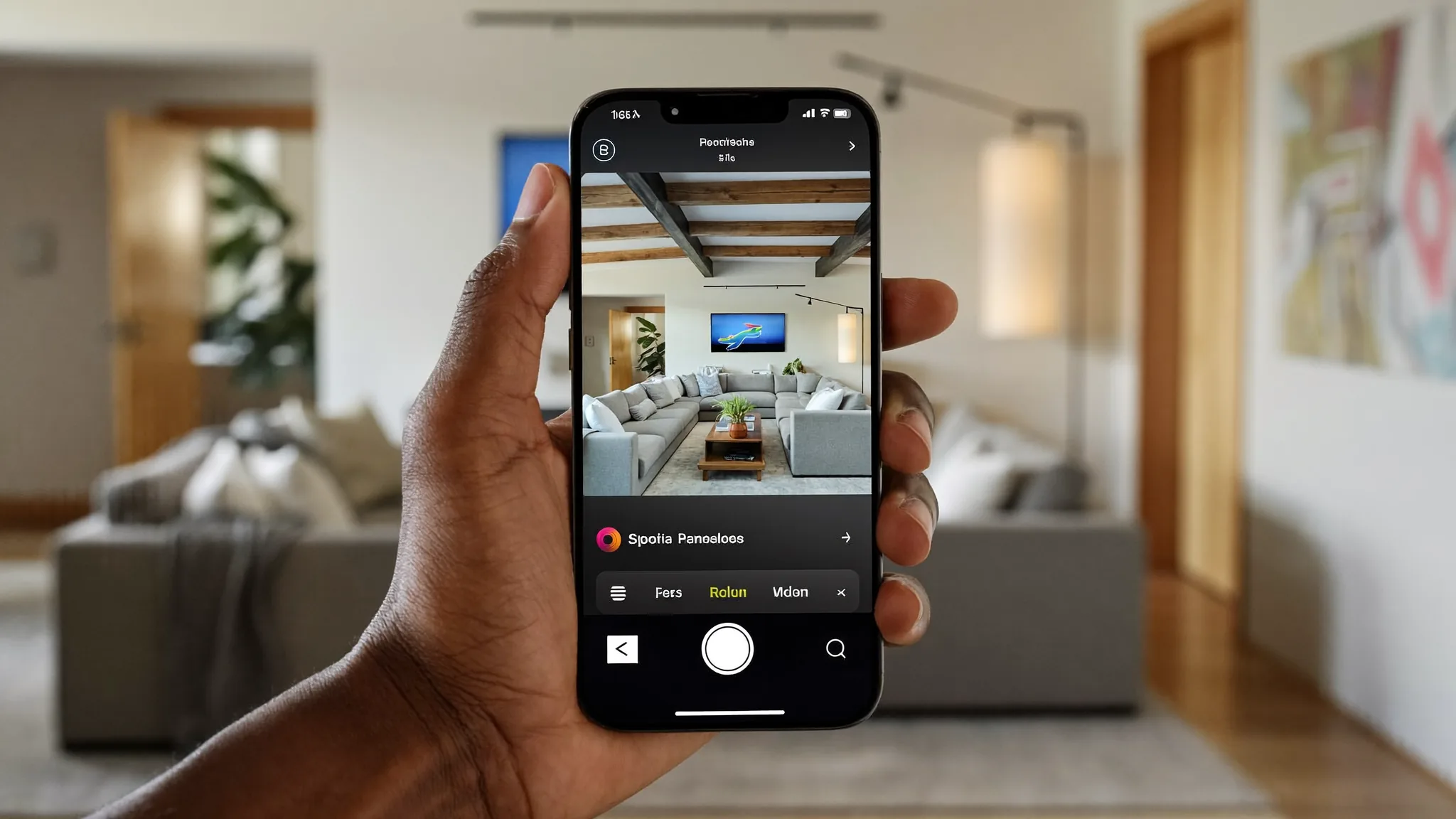
How to Use IPTV on iPhone in South Africa (Best Apps & Setup)
Setting up IPTV on iPhone in South Africa is a lot simpler than people expect once you know which apps actually work well with Apple's ecosystem. Whether you're watching in bed, on your commute, or casting to your living room TV, your iPhone can handle live channels just as well as a Smart TV can. Here's exactly how to get it running, plus the apps worth using and the ones to skip.
Can You Actually Watch IPTV on iPhone?
Yes, and it works reliably once it's set up correctly. iPhones don't come with a native IPTV app the way some Android TV boxes do, so you'll need to download a third-party player from the App Store first. Once that's installed and connected to your subscription, live channels stream the same way they would on any other device: over your data or Wi-Fi connection, in real time.
The main difference between iPhone and other devices is Apple's stricter App Store review process. Some IPTV player apps that exist on Android don't have an iOS equivalent, or get pulled from the App Store periodically. That's not a reflection on IPTV itself, just Apple's general approach to app approval. A handful of reliable apps have stuck around, and those are the ones worth using.
Best IPTV Apps for iPhone in South Africa
Not every app in the App Store handles IPTV playlists the same way. Some are built specifically for M3U links, others focus on Xtream Codes login credentials. Here's what tends to work best for South African IPTV users.
| App | Login Method | Notes |
|---|---|---|
| IPTV Smarters Pro | Xtream Codes or M3U URL | Most widely used, clean EPG (TV guide), reliable playback |
| GSE Smart IPTV | M3U URL or manual entry | Flexible, supports multiple playlist formats |
| IPTV Extreme | M3U URL | Simple interface, works well for basic live viewing |
IPTV Smarters Pro is generally the go-to choice for South African subscribers because it mirrors what most providers already configure for on other devices, and its EPG layout makes it easy to browse SuperSport, SABC, and international channels without hunting through menus. If you've already set it up on a Smart TV or a Firestick, the iPhone version works the same way with your same login.
Step-by-Step: Setting Up IPTV on iPhone
- Get your subscription details. Once you sign up for an IPTV plan, you'll receive either an Xtream Codes login (username, password, and server URL) or an M3U playlist link.
- Download a player app. Open the App Store and install IPTV Smarters Pro or GSE Smart IPTV, whichever you prefer from the table above.
- Enter your login details. Open the app, select "Login with Xtream Codes API" (or paste your M3U URL, depending on what you were given), and enter the details from your provider.
- Let the channel list load. The app will pull in your full channel lineup and EPG data. This can take a minute or two the first time.
- Test playback. Open a few channels to confirm video and audio are working smoothly before you rely on it for something you don't want to miss.
The whole process usually takes under ten minutes from download to your first channel playing. If something doesn't load correctly the first time, closing and reopening the app or re-entering your login details usually sorts it out.
Watching IPTV on iPhone: Data, Wi-Fi, and Casting to Your TV
One question that comes up a lot: does IPTV on iPhone use a lot of mobile data? Streaming live TV is data-intensive compared to browsing or messaging, so if you're watching on the go using mobile data rather than Wi-Fi, it's worth keeping an eye on your usage, particularly during load shedding when Wi-Fi routers might be down and you're relying on your phone's data connection instead.
If you want to watch on your TV instead of your phone screen, AirPlay makes this straightforward if you have an Apple TV or an AirPlay-compatible Smart TV. Open your IPTV app, tap the AirPlay icon, and select your TV. The stream mirrors across without needing a separate app installed on the TV itself. This is a handy option if you're testing IPTV out before deciding whether to set up a dedicated device like a Firestick or Android box permanently connected to your TV.
iPhone-Specific Settings Worth Checking
A few iOS settings tend to trip people up the first time they set up IPTV on iPhone, and knowing about them upfront saves some frustration.
Background App Refresh. If your IPTV app keeps losing its session or forgetting your login between uses, check that Background App Refresh is enabled for it under Settings, General, Background App Refresh. iOS aggressively manages background processes to save battery, which can sometimes interfere with apps that rely on maintaining a connection.
Low Power Mode. Streaming apps are one of the first things iOS throttles when Low Power Mode kicks in, usually once your battery drops below 20 percent. If playback suddenly gets choppy or the screen dims unexpectedly during a stream, check whether Low Power Mode switched on automatically.
Screen Time restrictions. If you've set up Screen Time limits on your device, or if it's a shared family phone with restrictions configured, double-check that the IPTV app isn't accidentally caught under a content or app-limit restriction that blocks it from opening at certain times.
Storage space. IPTV apps themselves are small, but EPG data and cached thumbnails can build up over time. If the app becomes sluggish after a few months of use, clearing its cache through the app's own settings menu (most IPTV players include this option) usually restores normal performance.
iPhone vs Other Devices for IPTV: Which Should You Use?
If you're deciding whether to watch primarily on your iPhone or set up a dedicated device like a Firestick or Smart TV app, it comes down to how and where you watch most often.
| Device | Best For | Trade-off |
|---|---|---|
| iPhone | On the go, in bed, quick checks during load shedding | Smaller screen unless casting via AirPlay |
| Smart TV app | Primary living room viewing | Fixed to one location |
| Firestick / Android box | Turning any TV into a smart display | Needs an HDMI port and its own remote |
Most South African households that use IPTV don't pick just one. A common setup is a Firestick or Smart TV app for the main living room screen, with the same subscription also logged into an iPhone for watching in another room, during travel, or when the power's out and only your phone's battery and mobile data are keeping you connected. Depending on your subscription's connection limit, you may be able to run both simultaneously, so check that detail with your provider if multi-device use matters to you.
Common Issues When Running IPTV on iPhone
A few issues come up repeatedly for iPhone users specifically, and most have simple fixes.
App gets removed from the App Store: This happens occasionally with IPTV player apps due to Apple's review policies. If your usual app disappears, switching to an alternative like GSE Smart IPTV keeps you streaming with the same login credentials.
Buffering on mobile data: Weak signal areas or network congestion can cause stuttering. Switching to Wi-Fi when available, or checking that background apps aren't eating your bandwidth, usually resolves it. Our buffering fixes guide covers this in more depth if it's a recurring problem rather than a one-off.
App crashes on launch: Usually fixed by force-closing the app and reopening it, or by updating to the latest version through the App Store. iOS updates occasionally require an app update to stay compatible, so keeping the app current avoids most of these issues.
Frequently Asked Questions: IPTV on iPhone in South Africa
Is there a free IPTV app that works on iPhone in South Africa?
The player apps themselves, like IPTV Smarters Pro and GSE Smart IPTV, are free to download from the App Store. You still need an active IPTV subscription to access live channels through them, the app itself is just the interface.
How much data does IPTV use on iPhone?
Data usage depends on stream quality, but live TV streaming generally uses more data than browsing or social media. If you're watching on mobile data rather than Wi-Fi, it's worth monitoring usage, especially over longer viewing sessions.
Can I cast IPTV from my iPhone to my TV?
Yes, using AirPlay if you have an Apple TV or an AirPlay-enabled Smart TV. Open the IPTV app, tap the AirPlay icon, and select your TV to mirror the stream directly.
Why did my IPTV app disappear from the App Store?
Apple periodically removes certain IPTV player apps during review updates. If this happens, an alternative app like GSE Smart IPTV or IPTV Extreme will work with the same login credentials your provider gave you.
Do I need Wi-Fi to use IPTV on iPhone?
No, IPTV works over mobile data too, as long as your connection is stable. Wi-Fi is generally preferable for consistent quality and to avoid using up your mobile data allowance.
Is IPTV on iPhone legal in South Africa?
Using a licensed IPTV provider with legitimate rights to the channels it streams is legal in South Africa. The legality rests on the provider's rights to the content, not on the device or app used to watch it.
Getting IPTV on iPhone up and running in South Africa takes a handful of minutes once you've got your subscription details and the right app installed. Whether you're watching solo on your phone or casting to the big screen through AirPlay, the setup stays simple. Grab an IPTV subscription to get your login details, or visit BestIPTVSA to see what's included in the channel lineup first.