
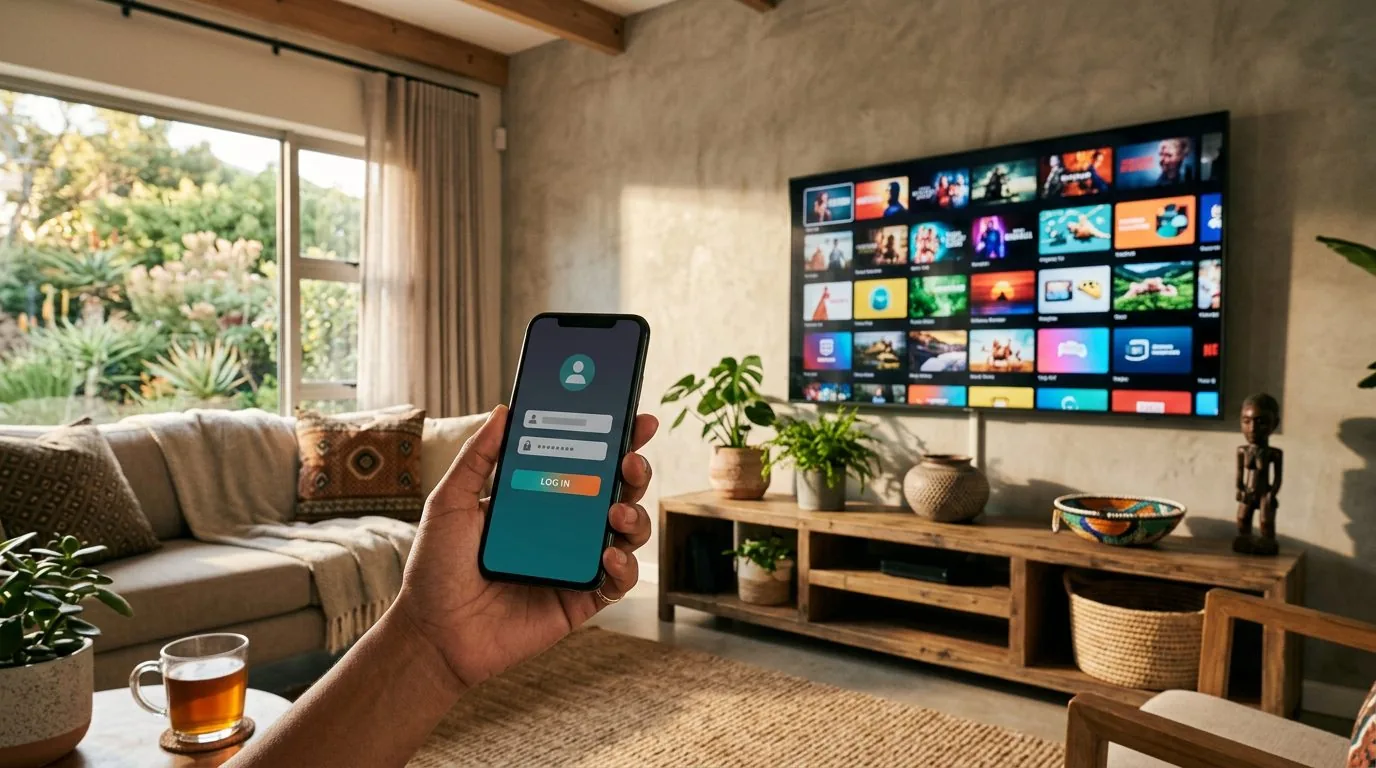
Xtream Codes Explained: What They Are and How to Use Them
If you've signed up for an IPTV service and someone has mentioned "Xtream Codes" or sent you a username, a password and a server link, you might be wondering what all of it actually means. It sounds technical, but the idea behind it is simple, and once you've done it once you'll never have to think about it again. This guide explains exactly what Xtream Codes are, how they differ from the older M3U method, and how to log in step by step on the two apps most South Africans use.
We've kept it plain and practical. By the end you'll know how to get your channels playing, what to do when something goes wrong, and how to stay on the right side of the rules while you do it.
What Are Xtream Codes?
Xtream Codes is a way of logging into an IPTV service using three simple details instead of a long, messy web link. Think of it like signing into your email: you give the app a server address, a username and a password, and it pulls in everything your subscription includes.
Those three details are:
- Server URL (host): the web address of the service you're connecting to. It usually looks like
http://something.com:8080or similar, with a port number on the end. - Username: your unique account name, often a string of letters and numbers.
- Password: the password tied to that username.
When you sign up for an IPTV subscription with us, you receive these three pieces of information. You type them into your IPTV player once, and the app builds your full list of live channels, movies and series automatically. There's nothing to download manually and nothing to update by hand when new content is added.
The name "Xtream Codes" comes from a panel software that became the common standard for managing IPTV services. Most modern IPTV apps now support this login style, which is why you'll see "Xtream Codes" or "Xtream Codes API" listed as a login option in nearly every player. It has become the easy default for a good reason.
Xtream Codes vs M3U: How They Differ
Before Xtream Codes became common, most people loaded their IPTV using something called an M3U link. Both methods end up showing you the same channels, so why does the difference matter? It comes down to convenience and how the app handles your content.
An M3U setup is a single long URL that contains your username and password baked into the web address. You paste that one link into the app and it loads everything as a flat list. It works, but it has a few rough edges.
Here's how the two compare:
| Feature | M3U Link | Xtream Codes |
|---|---|---|
| What you enter | One long URL with details inside it | Three separate fields: URL, username, password |
| Channel categories | Sometimes flat and unsorted | Sorted into tidy categories automatically |
| Live, movies and series | Often mixed together | Split into separate sections |
| TV guide (EPG) | Needs a separate link in many apps | Usually pulled in automatically |
| Ease of typing | Easy to mistype the long link | Cleaner, fewer errors |
For most viewers, Xtream Codes is the nicer experience. Your channels land neatly grouped, your on-demand movies and series sit in their own areas, and the programme guide tends to show up without extra fiddling. If your provider gives you both options, the Xtream Codes login is generally the one to choose. Still, M3U comes in handy when an app only supports that format, so it's good to know both exist.
How to Log In With Xtream Codes
The exact buttons differ slightly between apps, but the idea is always the same: find the "Add account" or "Add playlist" screen, choose the Xtream Codes option, and type in your three details. Below are clear walkthroughs for the two most popular players in South Africa. If you haven't picked an app yet, our roundup of the best IPTV player apps will help you choose.
Logging in with IPTV Smarters Pro
IPTV Smarters Pro is one of the most widely used players because it runs on almost everything: Android phones, Android TV boxes, Fire Stick, iPhone and more. For a fuller walkthrough of this app, see our IPTV Smarters Pro guide for South Africa.
- Open IPTV Smarters Pro. On the first screen, choose Login with Xtream Codes API.
- In the Any Name field, type a label for the account, like "Home" or your own name. This is just for you.
- Enter your Username exactly as it was given to you.
- Enter your Password exactly as given.
- In the URL or Server URL field, type the server address, including the port number on the end.
- Tap Add User or Login. The app will connect and load your live channels, movies and series.
Give it a few seconds the first time. The app is downloading your full channel list and the TV guide, so a short wait on the first login is normal.
Logging in with TiViMate
TiViMate is the favourite for Android TV boxes and Fire Stick users who want a slick, remote-friendly TV guide. It's built for the big screen rather than a phone.
- Open TiViMate and select Add playlist.
- Choose Xtream Codes as the playlist type.
- Enter the Server URL (the host address with its port number).
- Type in your Username and Password.
- Select Next. TiViMate will verify the details and pull in your channels and programme guide.
- Give the playlist a name, confirm, and you're done.
One handy tip: type your details slowly and double-check each character. A remote control keyboard makes it easy to slip in an extra space or the wrong letter, and that's the most common reason a first login fails.
If you're setting up on a Fire Stick or Android box and want the full device-by-device process, our guide on how to install IPTV covers the sideloading and setup steps in detail.
Troubleshooting Common Xtream Codes Problems
Most login trouble comes down to a small typo or a connection issue, not a broken subscription. Work through these checks in order and you'll usually fix it in a minute or two.
- "Invalid credentials" or login fails. This almost always means a typo. Re-enter your username and password carefully, watching for capital letters, the number zero versus the letter O, and any accidental spaces at the start or end. Copy and paste from the message we sent you if you can.
- The server URL is rejected. Make sure you've included the full address and the port number, for example the part after the colon like
:8080. Leaving off the port is a frequent slip. Check you've also got thehttp://at the front if the app needs it. - Channels load but won't play or keep buffering. This usually points to your internet rather than the login. Test your connection speed, move closer to your router, or restart the router. A wired connection on a TV box is steadier than Wi-Fi for streaming.
- No TV guide showing. Give it time on first load, then restart the app. The guide often fills in a few minutes after the channels appear.
- Everything stopped working suddenly. Check that your subscription is still active and hasn't reached its end date. If the dates are fine, restart the app and your device before assuming there's a bigger problem.
- Some channels work, others don't. Individual channels can drop temporarily for all sorts of reasons. If most things play and only a few don't, it's usually a passing issue rather than your setup.
If you've checked all of the above and you're still stuck, get in touch with our support team. We'd far rather sort it out with you than have you guessing. Nine times out of ten, it's a single mistyped character.
Staying Safe and Legal
Xtream Codes is just a login method, so it's neither legal nor illegal on its own. What matters is the service behind it and the content it carries. A few sensible habits keep you protected.
Keep your details private. Your username, password and server URL are tied to your account. Don't share them around or post them online. If too many people use the same login at once, your access can get throttled or cut off, and you've effectively given your subscription away for free.
Use a trustworthy provider. The quality and reliability of your viewing depends entirely on who you sign up with. A reputable service gives you clear pricing, real support and steady streams. Bargain-basement deals that seem too good to be true often vanish overnight, taking your money with them. We list our straightforward plans on the subscription page so you always know what you're paying.
Protect your devices. Only install apps from sources you trust, and be cautious with random APK files passed around in group chats. Stick to well-known players like the ones covered above.
Understand the content side. Whether a particular stream is properly licensed is down to the provider, not the app you use to watch it. Choosing an established service and being honest with yourself about what you're paying for is the responsible approach. If you ever have doubts about a deal, that doubt is usually worth listening to.
Ready to get set up the easy way? Choose a plan on our subscription page and we'll send you your Xtream Codes details so you can be watching within minutes.
Frequently Asked Questions
What is an Xtream Code? It's a set of three login details for an IPTV service: a server URL, a username and a password. You enter them into your IPTV app and it loads your full list of channels, movies and series. It's the modern, tidy alternative to pasting a long M3U link.
Where do I get my Xtream Codes? Your IPTV provider gives them to you when you subscribe. With us, you receive your server URL, username and password as soon as your plan is active, ready to type into the app of your choice.
Is Xtream Codes better than M3U? For most people, yes. Xtream Codes sorts your channels into neat categories, splits live TV from movies and series, and usually pulls in the TV guide automatically. M3U still works fine, but it can be messier and more prone to typos because everything sits in one long link.
Which app should I use for Xtream Codes? IPTV Smarters Pro is the easiest all-rounder and runs on almost any device. TiViMate is the top pick for Android TV boxes and Fire Stick thanks to its excellent TV guide. Our best IPTV player apps guide compares the options in full.
Why does my Xtream Codes login keep failing? It's nearly always a typo. Check your username and password for stray spaces, mixed-up zeros and letter Os, and capital letters. Make sure the server URL includes the port number on the end. Copy and paste from your welcome message where possible.
Can I use the same Xtream Codes on more than one device? That depends on your plan's allowed connections. Many plans cover a single stream at a time, so playing on two screens at once can cause errors. If you need multiple simultaneous screens, choose a plan that includes more connections. Check our plans or return to the home page to see what suits your household.