
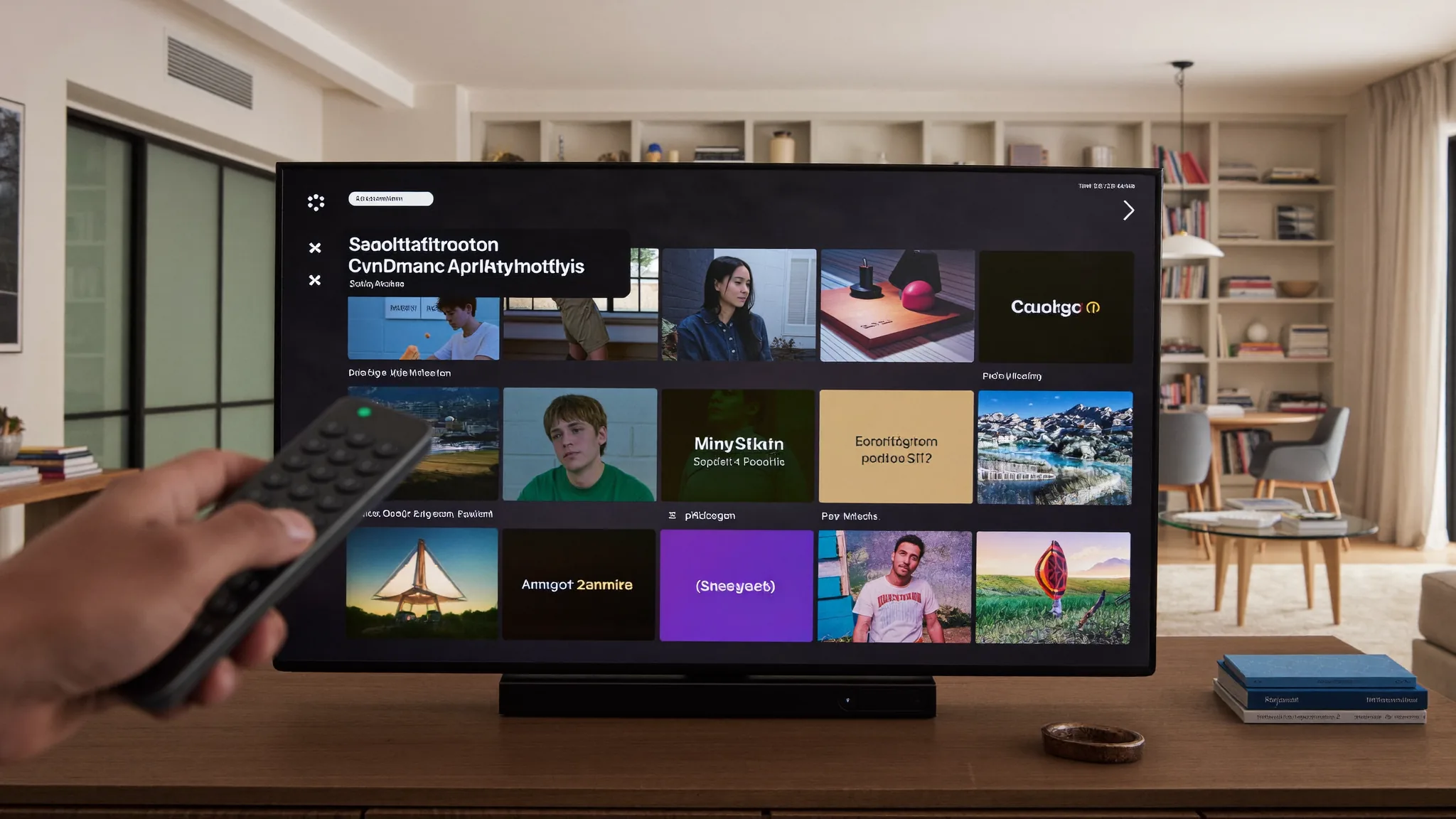
IPTV Smarters Setup Guide for South Africa (Any Device)
If you're looking for a straightforward IPTV Smarters setup for South Africa, this walkthrough covers every major device, from Smart TVs to phones, so you can get your channels loaded and working in under ten minutes. IPTV Smarters Pro is one of the most widely used player apps here, and once you've done it once, it's genuinely simple.
What You Need Before You Start
Before touching the app itself, make sure you've got three things ready. First, an active IPTV subscription with your login details or M3U playlist link on hand, usually sent by email after you sign up. Second, a stable internet connection of at least 10 to 15 Mbps for smooth HD playback. Third, the device you'll be watching on, whether that's a Smart TV, Android box, Firestick, phone, or laptop.
If you're not sure your connection is fast enough, run a quick speed test before you start. There's no point troubleshooting a "setup problem" that's actually just a slow line. Our internet speed guide for IPTV breaks down exactly what you need for different streaming quality levels.
Downloading IPTV Smarters Pro
IPTV Smarters Pro is free to download and available across almost every platform:
- Smart TVs (Samsung, LG): Search "IPTV Smarters Pro" in your TV's app store directly.
- Android TV boxes and Firestick: Available through the Google Play Store or Amazon Appstore, or sideloaded via Downloader if it's not listed for your specific device.
- Android phones and tablets: Download directly from the Google Play Store.
- iPhone and iPad: Available on the Apple App Store under the same name.
- Windows and Mac: A desktop version is available directly from the developer's website.
If you're setting up specifically on a Samsung TV or a Firestick, our dedicated guides for installing IPTV on a Samsung Smart TV and installing IPTV on a Firestick walk through those specific app stores step by step.
Step-by-Step IPTV Smarters Setup
Once the app is installed, the actual setup takes just a few minutes regardless of device.
- Open IPTV Smarters Pro and select "Login with Xtream Codes API" if you received a username, password, and server URL. Choose "Load your playlist or file/URL(M3U)" instead if you were given an M3U link.
- Enter your details exactly as provided. A single typo in the server URL or password is the most common reason a first setup fails, so copy and paste rather than typing it out manually if you can.
- Give the playlist a name. This is just for your own reference if you ever manage more than one playlist on the same device.
- Tap "Add User" and let it load. The app will pull your full channel list, which can take a minute or two depending on how large the channel lineup is.
- Browse categories. Channels are usually grouped by type (Sports, News, Entertainment, Movies) to make finding what you want faster than scrolling one long list.
- Test a live channel. Pick something reliably on air, like a news channel, to confirm playback works smoothly before you rely on it for something like a live match.
If you're setting this up on more than one device in the house, our guide on cancelling DStv is worth a read once your IPTV setup is confirmed working, since a lot of households switch over gradually rather than cancelling everything on day one.
Xtream Codes vs M3U: Which Login Method Should You Use?
Providers typically offer one of two login methods, and it's worth understanding the difference so you pick the right option in the app.
| Method | What You Need | Advantage |
|---|---|---|
| Xtream Codes API | Username, password, server URL | Easier to update or troubleshoot if your provider changes servers |
| M3U Playlist URL | A single playlist link | Quicker one-time setup, works across most player apps |
Neither method is objectively better, it depends on what your provider issues you. If you're curious about how the underlying system works, our Xtream Codes explained guide covers it in more detail.
Common Setup Problems and How to Fix Them
Most IPTV Smarters issues during setup come down to a handful of predictable causes.
- "Connection failed" errors usually mean a typo in the server URL, username, or password. Double-check each field character by character, particularly if you typed rather than pasted the details.
- Channels load but freeze constantly. This is almost always a connection issue rather than an app problem. Our buffering fixes guide covers router placement, Wi-Fi versus ethernet, and other common causes.
- App crashes on launch. Try clearing the app's cache in your device settings, or reinstall it fresh if that doesn't help. Older Firestick and Android box models sometimes need a restart after installing new apps.
- EPG (TV guide) not showing. Some providers require a separate EPG URL entered in the app's settings menu rather than it loading automatically with the playlist.
IPTV Smarters vs Other Player Apps
IPTV Smarters Pro isn't the only player app available, and it's worth knowing why it's such a common recommendation for an IPTV Smarters setup in South Africa specifically. TiviMate is the other big name, and it offers a slightly cleaner interface on Android TV boxes and Firestick, but it doesn't have a native iOS app, which matters if your household mixes Apple and Android devices. IPTV Smarters Pro works consistently across both ecosystems, which is why it tends to be the safer default recommendation when you're setting up more than one type of device. Neither app is objectively "better" across the board. If your whole household watches on Android TV boxes, TiviMate's interface might suit you slightly more. If you've got a mix of iPhones, Samsung TVs, and Android boxes under one roof, IPTV Smarters Pro's broader compatibility makes it the more practical single choice so you're not learning two different apps for two different device types.
Getting the Most Out of IPTV Smarters Once It's Running
Once your IPTV Smarters setup is complete and channels are loading properly, a few extra settings make daily use smoother. Set your favourite channels using the app's favourites feature so you're not scrolling through the full list every time. Check the EPG (electronic programme guide) settings if you want to see what's currently airing and what's coming up next, similar to a traditional TV guide. If you're watching on a shared household device, consider creating separate favourite lists if the app supports multiple profiles, so everyone's most-watched channels stay easy to find.
It's also worth checking parental control settings if children use the same device, since most IPTV apps include a basic PIN-lock feature for specific categories.
Setting Up IPTV Smarters on a Second Device
Once you've done your first IPTV Smarters setup in South Africa, adding a second device is much quicker since you already know your login details work. The main thing to check first is your subscription's connection limit. Most plans allow a set number of simultaneous streams, so if you're setting up a bedroom TV alongside the main lounge TV, confirm both can run at the same time before assuming it'll just work. The setup steps stay identical regardless of device: install the app, choose your login method, enter your details, and let the channel list load. The only real difference is where you find the app in each device's store, and whether you're using a remote or a touchscreen to navigate the menus.
Keeping Your Setup Running Smoothly
A working IPTV Smarters setup doesn't need much ongoing maintenance, but a few habits keep it reliable long term. Update the app whenever a new version becomes available in your device's store, since providers occasionally adjust server details that older app versions don't handle well. If you ever change routers or switch from Wi-Fi to a wired connection, it's worth reloading your playlist afterward just to confirm everything's still pulling through correctly. It's also worth bookmarking your provider's support contact details somewhere easy to find, separate from the app itself. If a server issue ever comes up, you don't want to be searching for how to get help while a match or show is mid-stream.
Frequently Asked Questions: IPTV Smarters Setup in South Africa
Is IPTV Smarters Pro free to download?
Yes, the app itself is free on every platform. You'll need an active IPTV subscription separately to get channels loaded, which starts at R399 for one month.
What information do I need for an IPTV Smarters setup in South Africa?
You'll need either an Xtream Codes login (username, password, server URL) or an M3U playlist link, both provided by your IPTV subscription after signing up.
Can I use IPTV Smarters on more than one device?
Yes, as long as your subscription plan supports the number of simultaneous connections you need. Check your plan's connection limit if you're setting up on multiple TVs or devices at once.
Why does IPTV Smarters say "connection failed" during setup?
This almost always means a typo in the server URL, username, or password. Copy and paste your login details rather than typing them manually to avoid this.
Does IPTV Smarters work on Samsung and LG Smart TVs?
Yes, it's available directly through both TV brands' app stores. Search "IPTV Smarters Pro" and install it the same way you would any other TV app.
How long does IPTV Smarters setup take?
Once you have your login details and a stable internet connection, the full setup usually takes under ten minutes, including the time it takes your channel list to load in fully.
Getting IPTV Smarters set up in South Africa is a lot simpler than it looks the first time you open the app. Once you've got an active subscription and your login details in hand, the whole process takes minutes on almost any device. Head to BestIPTVSA to see current plans, or check the blog for device-specific setup guides.